Simple Website Hosting on AWS S3 Using Terraform
Introduction
In this blog post, we'll explore the process of hosting a simple static website on Amazon Web Services (AWS) S3 using Terraform. Static websites are cost-effective and efficient, making them an excellent choice for personal portfolios, blogs, or small business websites. By the end of this guide, you'll have your website up and running on AWS S3, all managed through Terraform.
Step 1: Install Terraform and AWS CLI
Before we begin, ensure that you have Terraform and the AWS CLI installed on your system. You can find installation instructions for both tools on the official Terraform website and the AWS CLI documentation.
Step 2: Create an IAM User
To interact with AWS services, we'll need an IAM (Identity and Access Management) user with administrative access. Follow these steps:
Log in to your AWS account.
Navigate to the IAM service.
Click "Users" and then "Add User."
Give your user a name, and under permissions, choose "Attach policies directly" and select the "AdministratorAccess" policy.
Create an Access Key and save the CSV file containing the access key and secret access key for later use.
Step 3: Authenticate with IAM Credentials
Open your terminal and run the following command, replacing ACCESS_KEY and SECRET_KEY with your IAM user's credentials:
$ aws configure

Step 4: Configuration using Terraform
Create a folder for your project and open it in Visual Studio Code.My folder name is "terraform-s3-static-webhost".
Create a
provider.tffile. This is where we configure the AWS provider. Refer to the Terraform documentation for provider configuration details.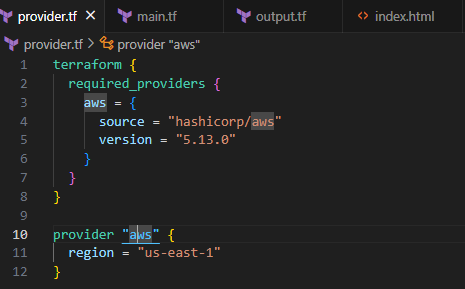
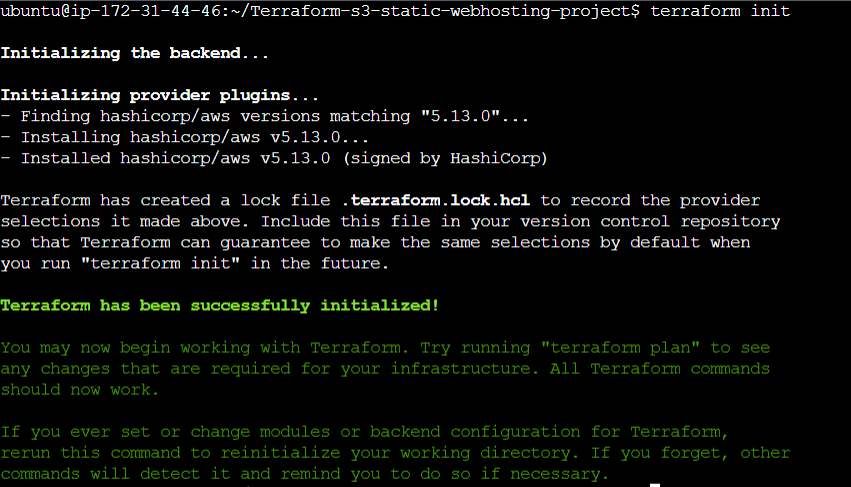
Initialize Terraform using:
$ terraform init
It will help us to download all the dependencies or files for the provider.
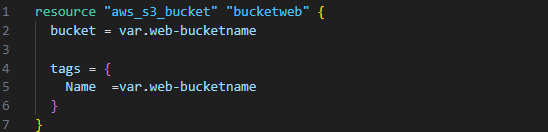
Create a
main.tffile where we'll define our S3 bucket configuration. You can copy and paste the S3 bucket configuration from the Terraform documentation.Ensure your bucket name is unique globally.
Create a
variable.tffile to define variables, like your bucket name.
Run
terraform planandterraform apply -auto-approveto create the S3 bucket.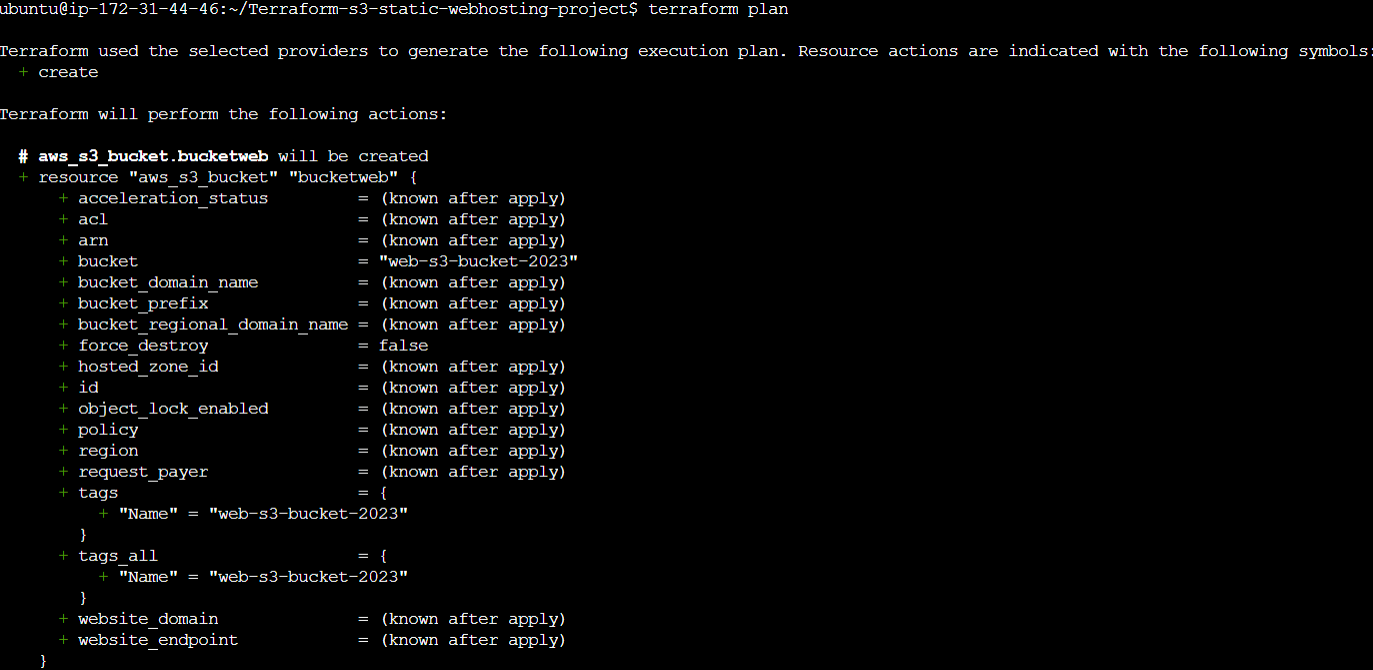

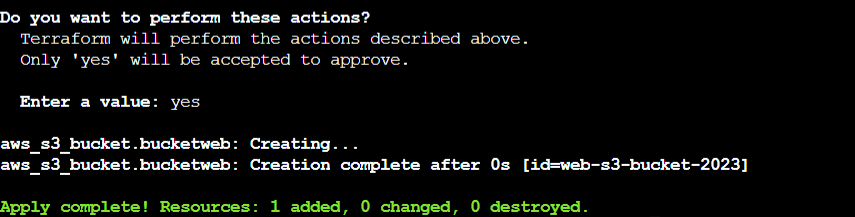
(-auto-approve -use this only if you want to skip typing yes to apply)
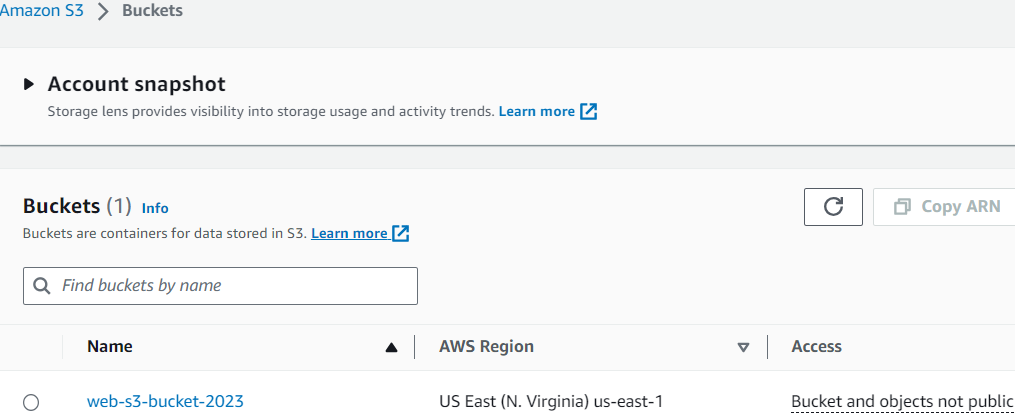
Now navigate to your AWS account>s3 and check if the bucket is successfully created or not.
Manage S3 Bucket Ownership
To manage S3 bucket ownership, add the S3 bucket ownership controls configuration to your
main.tffile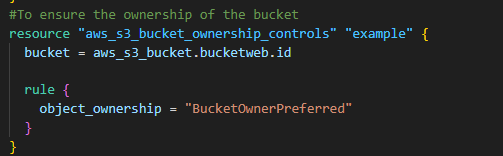
Make the Bucket Public
To make your bucket public and add an ACL resource, use the S3 bucket public access block configuration. Set all values to 'false'.
With 'public-read' ACL, this disables the default S3 bucket security settings.
https://registry.terraform.io/providers/hashicorp/aws/latest/docs/resources/s3_bucket_acl
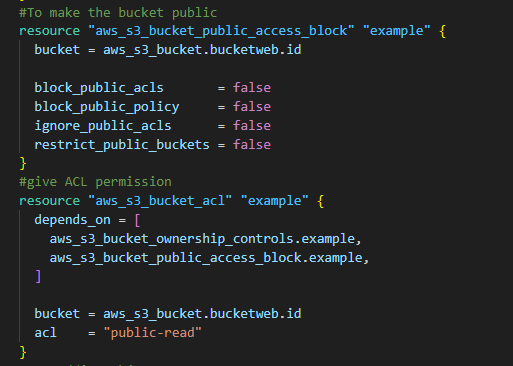
Run
terraform planandterraform apply. Check the changes on AWS S3 bucket permissions.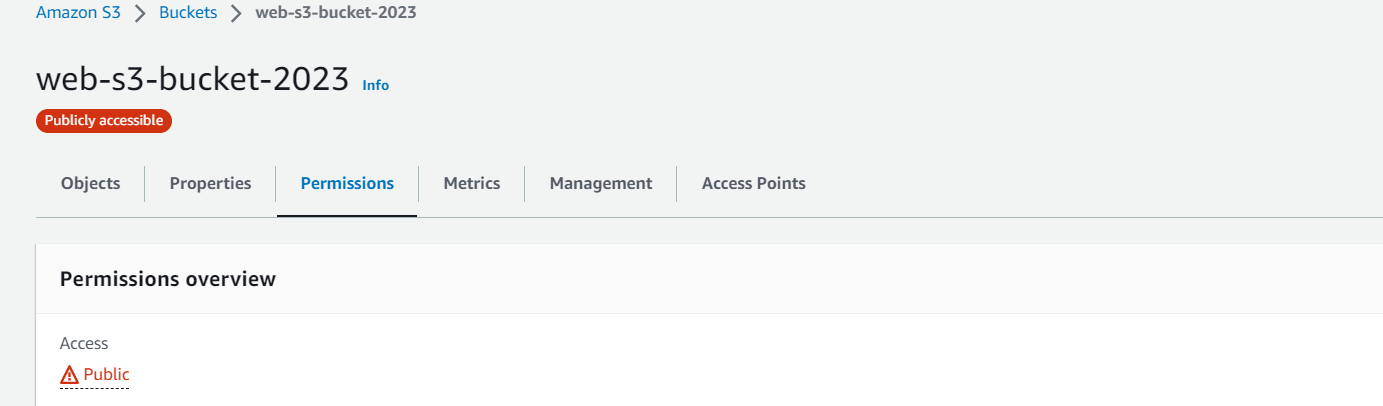

Enable Static Website Hosting
To enable static website hosting, use the S3 bucket website configuration resource. Before that, You'll need to create
index.htmlanderror.htmlfiles in your project folder and add them to your S3 bucket using the S3 object configuration.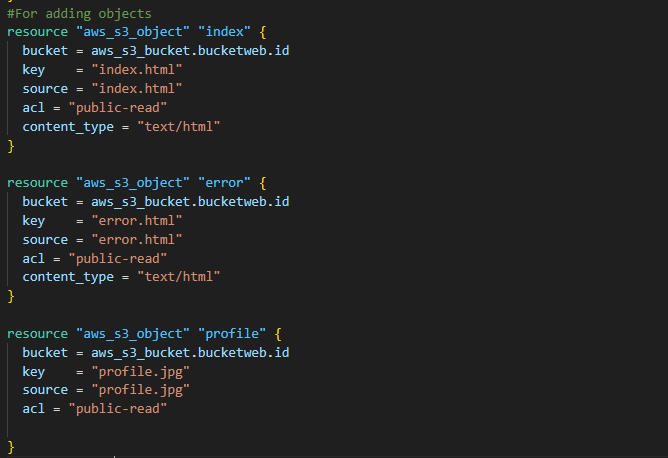
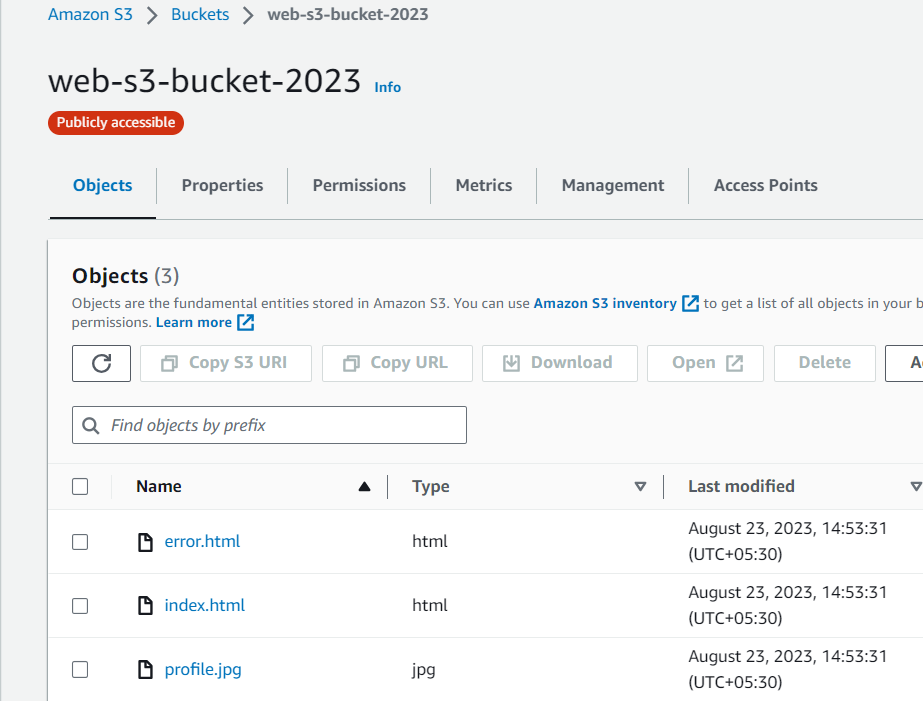
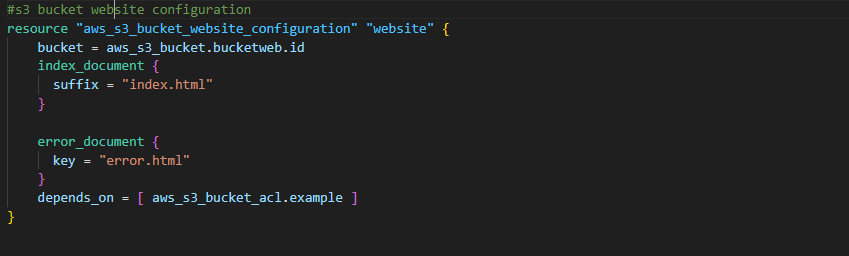
index.html: The index.html file is the main entry point of a website. It contains the content and structure of the webpage that visitors see first when they access the site.
error.html: The error.html file is a custom error page that is displayed when a visitor encounters an issue or error while navigating the website. It provides a user-friendly message to help users understand and resolve the problem.
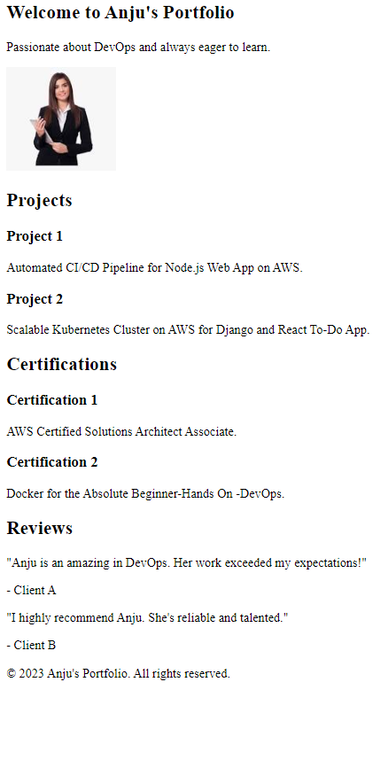
Edit index.html to customize your website. Retrieve the object URL for profile.jpg in your AWS S3 bucket(AWS >S3 > your bucket>profile.jpeg >copy object URL).

Go to VSC>index.html add this object URL to img src.
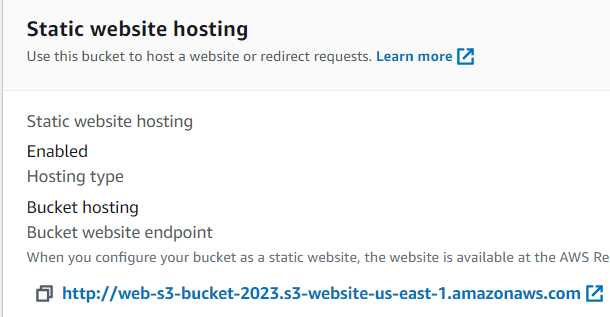
After making changes, run terraform plan and terraform apply. Navigate to AWS S3 > your bucket > properties > static web hosting to see your portfolio.
Project
You can find the Project on my github:
https://github.com/Anju12345hub/Terraform-s3-static-webhosting-project
Reference
https://youtu.be/wFWg0Y68Owo?si=gYRjlTg0xFUQSF4q
Conclusion
You've successfully hosted a simple static website on AWS S3 using Terraform. This setup is not only cost-effective but also scalable and reliable. Feel free to customize your website further and explore more advanced AWS features to enhance your hosting experience. Happy hosting!

